
What a connection timeout means
Every time you open a player app or a channel, the app sends a request to the server and waits. If no answer arrives within the time the app is prepared to wait, it stops and shows a timeout. The message tells you the connection failed; it does not tell you where.
The web standard has two timeout codes, and some players show them as numbers. RFC 9110 defines 408 Request Timeout as the server not receiving a complete request within the time it was prepared to wait, and 504 Gateway Timeout as a server, acting as a gateway, not getting a timely answer from the server behind it. Either way, something on the path was too slow or did not answer.
A timeout is different from a login error. “Invalid username or password” means the server answered and refused the details; a timeout means the answer never came. If your app shows a login error instead, the Apollo Group TV login and portal guide is the better place to start.
Causes and fixes, in the order to try them
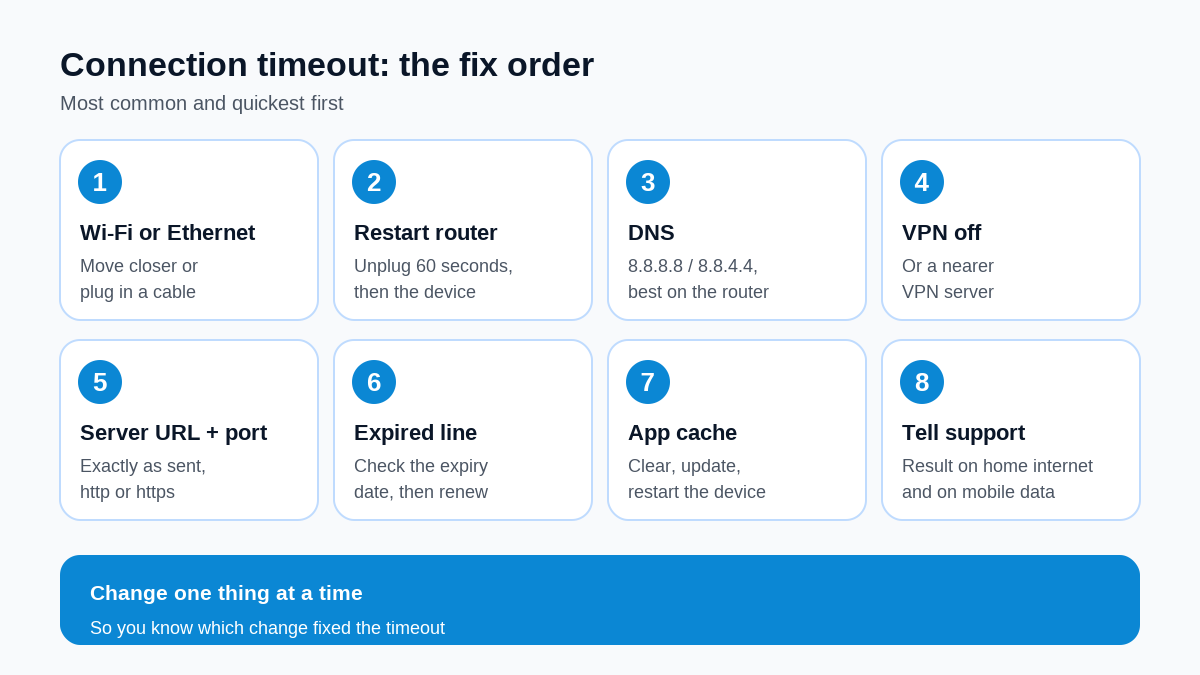
Work down the table. The first rows are the most common and the quickest to rule out; change one thing at a time, so you know which change fixed it.
| Cause | What points to it | Fix |
|---|---|---|
| Weak Wi-Fi | Timeouts in one room, or only at busy hours | Move the router or the device, or plug in an Ethernet cable |
| Router needs a restart | Other apps are slow too | Unplug the router for 60 seconds, then restart the device from its settings |
| DNS | Web pages are slow to start, then load | Change DNS on the router, or on the device |
| VPN | Works with the VPN off, times out with it on | Turn the VPN off, or pick a nearer server |
| Server URL or port | Times out from the first second, on every network | Re-enter the server URL exactly as sent, with its port and http or https |
| Expired line | Started on the plan's end date | Check the expiry date in the player, then renew |
| App cache | One device fails, others play | Clear the player app's cache, update it, restart |
| Internet provider | Fails on home internet with every device, plays on mobile data | Send support the result on both connections |
Run the mobile data test first
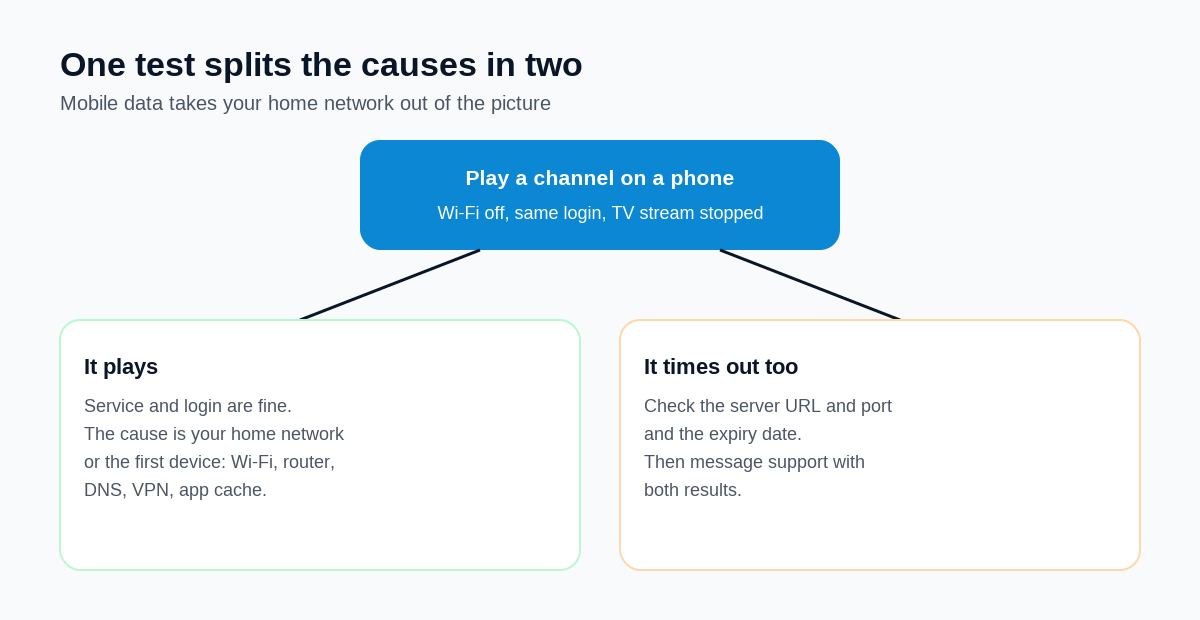
One test splits the causes in two. Install a player on your phone, sign in with the same details, turn off Wi-Fi so it uses mobile data, and play a channel. Stop the stream on the TV first, so you do not go over the number of screens your plan covers.
- The phone plays: the service and your login are fine, and the timeout comes from your home network or the first device. Work through Wi-Fi, router, DNS, VPN and app cache.
- The phone times out too: check the server URL and the expiry date, then message support with both results.
The same test is check 2 in our six checks for when Apollo Group TV stops working, which cover every other kind of fault.
Wi-Fi, Ethernet and the router
Live TV needs a steady connection more than a fast one, and Wi-Fi drops are the most common reason a player gives up waiting. If the TV or streaming stick is far from the router or behind walls, move one closer for a test, or connect it with an Ethernet cable if it has a port.
Then restart in the right order: unplug the router for 60 seconds, plug it back in, wait for it to come online, and restart the streaming device from its settings menu rather than putting it to sleep. If streams start but then stall, that is buffering rather than a timeout, and the IPTV buffering fixes cover it.
DNS and VPN settings
DNS turns the server's name into an address. A slow or failing DNS server can make the app wait too long before the connection even starts. Google Public DNS gives its addresses as 8.8.8.8 and 8.8.4.4 and says the best place to change DNS is on the router, so every device on the network uses it; you can also set it on a single device in its network settings.
A VPN adds a stop between you and the server. If the VPN server is slow or far away, requests time out that would work without it. Turn the VPN off and test again; if you want to keep it, pick a server near you. Our guide to VPN for IPTV setup and fixes covers the settings that matter.
Check the server URL and port in your player
A server URL with a typing error, a missing port number or http where https was sent (or the other way round) can show as a timeout on every network, from the first second. Re-enter the server URL, username and password exactly as they were sent on WhatsApp, keep the port at the end of the address, and delete any space after a pasted value.
- TiviMate: the login is saved with the playlist. Its Google Play listing names M3U, Xtream Codes and Stalker Portal playlists, so check which type you added and edit that playlist.
- IPTV Smarters: the login is saved with the user profile you added. Edit it or add it again with the Xtream Codes details.
Menu names change between app versions, so look for the playlist or user you added rather than a fixed path. If you are not sure which details you hold, ask support for the current ones; an expired line can also stop the connection, so check the expiry date in the player and see our guide to Apollo Group TV renewal if it has passed.
App cache and your internet provider
When one device times out and the others play, clear the player app's cache, update the app and restart the device. Our guide to IPTV channels not loading gives the cache steps for Fire TV and Android devices.
If every device on your home internet times out while a phone on mobile data plays, the cause may be on your internet provider's side. Some providers filter or slow certain traffic; we cannot tell whether yours does. Send support the result on both connections so they can check the server side as well.
When to message support
Message support when the phone on mobile data times out too, when the timeout started on a date you cannot explain, or when you have worked through the table and it still comes back. Send your username (never the password), the device and app, the exact message, since when it happens, and the result of the mobile data test.
Message support on WhatsAppThe Apollo Group TV customer service guide lists both support channels and which one is 24/7.
Connection timeout questions, answered
What does connection timeout mean on Apollo Group TV?
The player app sent a request to the server and gave up waiting before an answer came back. It tells you the connection failed, not why. Most of the time the cause is on the path between your device and the server: Wi-Fi, the router, DNS, a VPN or a mistyped server URL.
Why does Apollo Group TV keep saying connection timeout?
A timeout that keeps coming back usually has a fixed cause: a VPN left on, a server URL with the wrong port, weak Wi-Fi in that room, or a home network problem. Run the mobile data test: if a phone on mobile data plays, the cause is at home; if it times out too, message support.
Is connection timeout the same as connection limit exceeded?
No. A timeout means the app could not reach the server in time. Connection limit exceeded means it reached the server, but more screens are playing than your plan covers. Stop the stream on another device, or see how plans for 1 to 4 devices work.
For more on screens and plans, see IPTV multiple connections.
Where to go next
Every other fault, from buffering to a black screen, has its own page in the IPTV troubleshooting guide. If the timeout turned out to be an expired line, the Apollo Group TV plans and pricing page lists every plan length for 1 to 4 devices.
Sources
Checked on . Store listings and prices change; these are the pages to re-check.
Updated
Before you buy
What to know about Apollo Group TV
- Prepaid, no auto-renewalYou renew only when you choose to. Nothing is charged automatically.
- Support 24/7Every day, day and night. A person answers on WhatsApp, before and after you buy.
- Familiar ways to payVisa, Mastercard, Google Pay or Apple Pay.
- Terms in writingBoth the Apollo Group TV refund policy and the Apollo Group TV terms are on the site.
Try it before you pay
A free 24-hour trial lets you test the service before paying anything.
Start Free 24hr TrialOpens WhatsApp · a person replies 24/7
Plans from $19.99/month. See what each plan costs →