
Can an LG smart TV record?
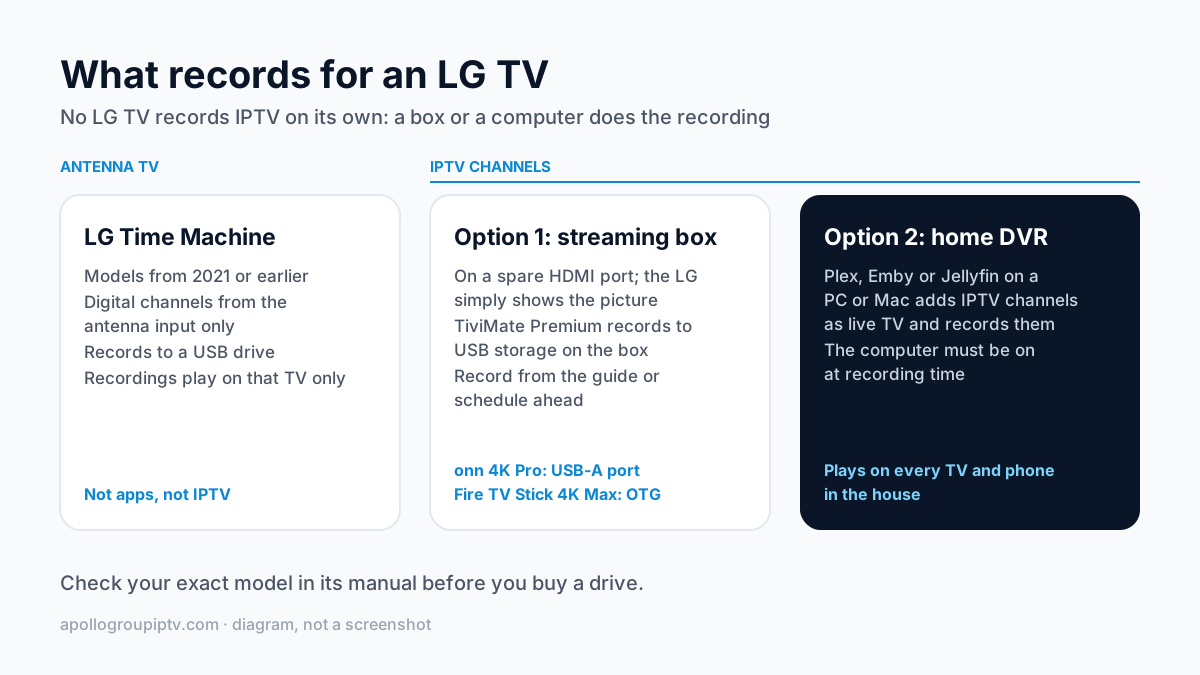
Only older models, and only antenna TV. LG's recording feature, called Time Machine, writes digital channels from the TV's antenna input to a USB drive. LG's help library says it is supported only by models released in 2021 or earlier, and that from webOS 6.0, the 2021 software, Time Machine itself is not supported.
That is why a new LG has no record button and no record option in its menus. The help pages describe a simpler instant recording to USB on 2021 webOS 6.0 sets and no recorder for later models. LG's help pages describe these features on models up to 2021; LG's US help page could not be read when we checked, so look up your exact model in its manual before you buy a drive.
Even where Time Machine works, it covers antenna channels only. Streaming apps, IPTV players and anything else that plays through the internet are outside it. The rest of this page is about recording those.
LG Time Machine: which models and what it records
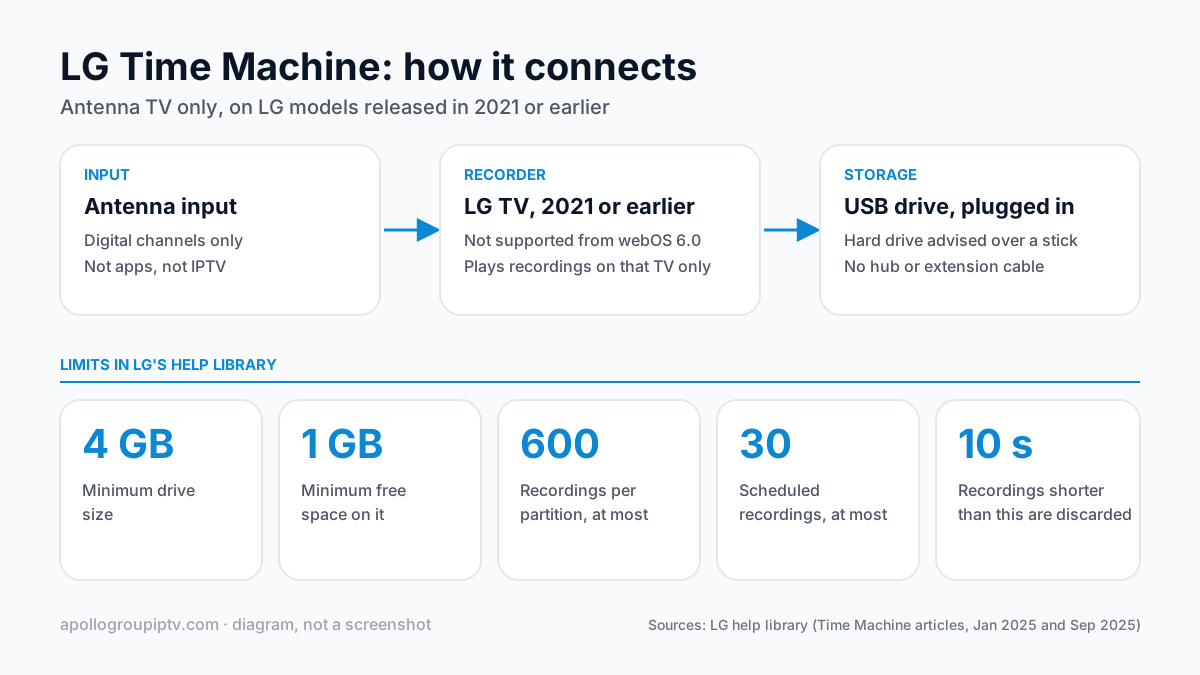
Time Machine records over-the-air digital channels on LG TVs from 2021 or earlier, to a USB drive plugged into the TV. These are the rules from LG's help library.
| Rule | What LG's help pages say |
|---|---|
| Which models | Models released in 2021 or earlier; not supported from webOS 6.0 |
| What it records | Digital channels received through the antenna input only |
| USB drive | At least 4 GB, with at least 1 GB free; a USB hard drive is advised over a memory stick |
| Hubs and extension cables | Recording may not work, or not smoothly, through a USB hub or extension cable |
| Where recordings play | On that TV only; they are protected so they will not play on computers or other TVs |
| Limits | Up to 600 recordings per partition and up to 30 scheduled recordings; recordings under 10 seconds are discarded |
The protection rule has a second edge: LG says recordings stop being available if the TV's imaging circuit components are replaced, so a repair can cost you the library. If you want to keep what you record, a box or computer is the better home for it.
Why IPTV apps on an LG TV cannot record
Because the TV's recorder only listens to the antenna. Time Machine was built around the TV's tuner, and an IPTV player on webOS is an app that pulls a stream from the internet; nothing in LG's recording feature reaches inside an app. LG's help pages describe no recorder at all for later models.
Whether a particular player in the LG Content Store has its own record option is up to that app. We have not checked every webOS player for one, so look in your player's settings. If there is no record option there, the TV cannot add one, and the two routes below are the ones that work.
Setting up a player on the TV for watching, rather than recording, is covered in the LG webOS IPTV setup guide.
Option 1: a streaming box with a recording player
A streaming box on a spare HDMI port is the simplest way to record IPTV for an LG. The box runs a player that can record, the recording goes to a USB drive on the box, and the LG simply shows the picture.
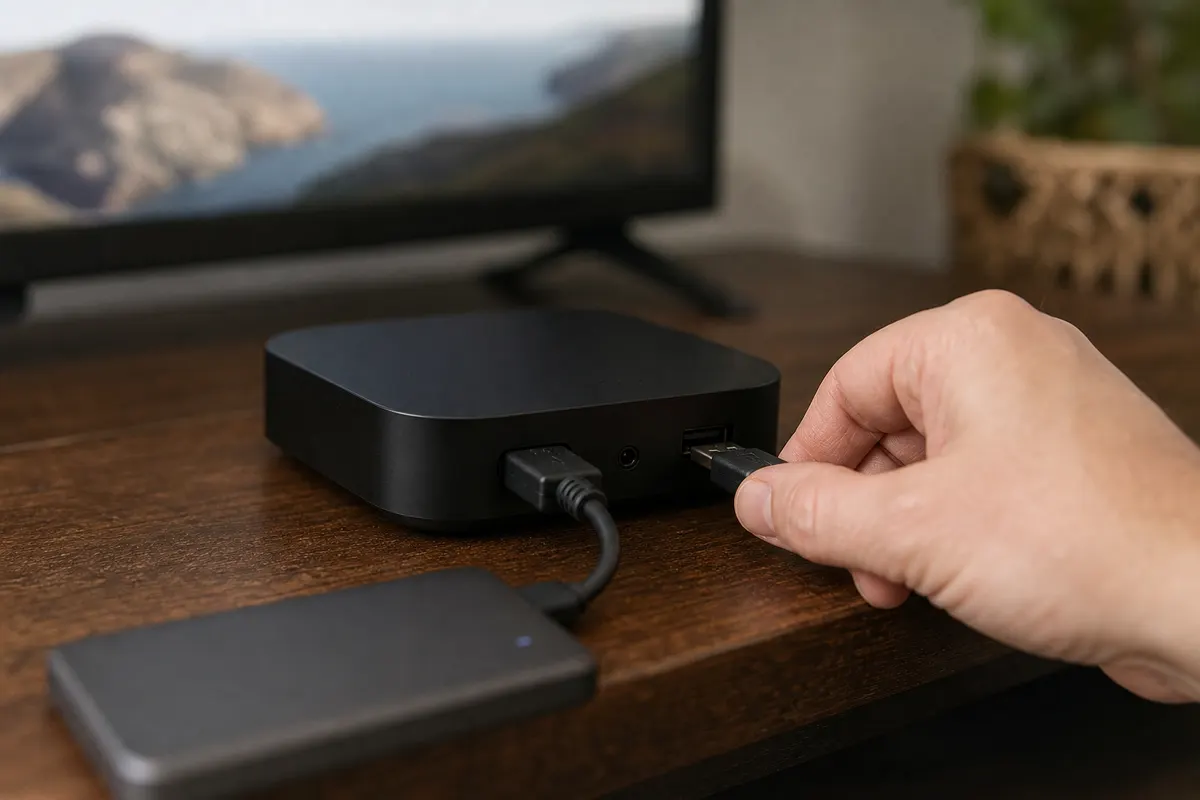
TiviMate is the usual choice. TiviMate Premium, a paid upgrade, records programs to USB storage on Fire TV and Android TV devices, and you can start a recording from the guide or schedule one ahead. Two boxes cover most homes:
| Box | US list price | USB for recordings | Setup guide |
|---|---|---|---|
| onn 4K Pro (2026 model), Walmart | $59.88 | USB-A port on the box | TiviMate on the onn 4K Pro |
| Amazon Fire TV Stick 4K Max | $84.99 | Through an OTG adapter | Firestick recording steps |
US list prices before tax, checked 13 October 2026, from dated secondary reports.
The onn 4K Pro is the easier of the two because the drive plugs straight in; the TiviMate install on the onn 4K Pro takes a few minutes, and the TiviMate review lists what Premium adds.
Avoid the Vega OS Fire TV Stick 4K Select for this. It cannot install TiviMate and does not use USB drives for storage.
Watching one channel while recording another uses two streams at once, so it needs a plan that covers two devices or more. Apollo Group TV plans cover 1 to 4 devices.
The full recording walkthrough, including scheduling and where files are saved, is in our step-by-step IPTV recording guide.
Option 2: a whole-home DVR on a computer
Yes, a computer can record IPTV and serve it to an LG TV. Media server software on a PC or Mac adds your IPTV channels as live TV, records them on a schedule and streams both live channels and recordings to an app on the TV.
Three programs do this. Plex records with a Plex Pass, Emby puts live TV and DVR behind its paid Emby Premiere tier, and Jellyfin is free and open source, including its DVR. Each one takes the M3U link and guide address from your provider, and each has a TV app; check the LG Content Store for the one you choose.
The trade-off is that the computer must be on at recording time, and recordings use its drive rather than a USB stick. In return, recordings play on every TV and phone in the house, not just one. Setup for all three is in our home IPTV DVR guide.
Recording vs catch-up: which you actually need
If you only miss shows by a day or two, catch-up may be all you need. Catch-up replays recent programs from the provider's servers, so there is nothing to record and no drive to fill. Apollo Group TV has a 7-day program guide and catch-up on supported channels, and it plays in players that support catch-up, such as TiviMate.
Recording is still the answer when you want to keep something longer than the catch-up window, when a channel has no catch-up, or when you want to skip forward through a program you saved. Check during a trial whether the channels you care about offer catch-up in your player before you buy a drive.
USB drives and storage
For Time Machine on an older LG, LG asks for a drive of at least 4 GB with at least 1 GB free and advises a USB hard drive over a memory stick. Plug it straight into the TV, not through a hub or extension cable.
For a streaming box, use the box's USB port or adapter and set the recording folder in the player. A larger drive simply holds more hours; how many depends on each channel's picture quality, so watch the free space after your first few recordings. For a home DVR, recordings go to the computer's own drive.
Where to go next
Choose a box or a computer, then follow its guide; the comparison of IPTV players shows which players record. Apollo Group TV plans start at $19.99 a month with no contract on our pricing page, and you can try free for 24 hours — no credit card required.
How this guide was checked
Checked on 15 October 2026against LG's help library. We did not test recording on an LG TV; the Time Machine rules are LG's own wording.
- Time Machine rules: LG help library, How can I use the Time Machine Recording feature? (15 September 2025).
- Time Machine rules: LG help library, LG OLED TV Time Machine Recording (9 January 2025).
- Device prices: 9to5Google: Walmart onn 4K Pro (2026) hits shelves for $60 (2026-04-15), secondary source.
- Device prices: Walmart.com onn 4K Pro (2026) listing (bot-check, not readable) (accessed 2026-10-13).
- Device prices: AFTVnews: Amazon increases the price of all Fire TVs (2026-08-24), secondary source.
Updated
Ready to start streaming?
55,000+ channels · 4K UHD · Free 24hr trial — no credit card
Plans from $19.99/month. See what each plan costs →