
Can you install an IPTV app on a Vizio TV?
Usually not in a way you can rely on. Vizio's smart TV software, which its website now calls VIZIO OS (earlier sets and most guides call it SmartCast), runs the apps Vizio adds to its own app row. Vizio's page advertises 300+ apps, but the list is Vizio's choice, and the IPTV players that accept an Xtream Codes login are mostly built for Android, Fire OS and Apple devices instead.
So the first job is a quick look. Open the app row on your TV and search for a player you know. If one is there and it accepts an Xtream Codes login or an M3U link, you can use it. If not, skip the guides that tell you to load an APK file from a USB stick: an APK is an Android app package, and those steps come from Android TVs.
Apollo Group TV runs in a standard player app with the Xtream Codes details we send on WhatsApp, so the TV only needs to show a player's picture. Each setup below gets one onto the screen.
Check which Vizio software your TV runs
Look at the home screen and the remote before you buy anything. The software decides which of the three setups you can use.
| What you see | What it is | What to do for IPTV |
|---|---|---|
| VIZIO OS or SmartCast named in the manual, with WatchFree+ on the home screen | Vizio's current software | Check the app row, then use a stick, Chromecast or AirPlay |
| VIA or VIA Plus named in the manual of an older set | Vizio's older app platform | Use a streaming stick on a spare HDMI port |
| The Google Play Store in the app list | Google TV or Android TV software | Install a player from Play, as on any Google TV device |
Casting and AirPlay depend on the model, so test them before you rely on them. Vizio's own page lists AirPlay on its current smart TVs and recommends the latest iOS, iPadOS or macOS for it. If your phone does not list the TV as a target, the TV does not offer it, and the stick is the answer.
Setup 1: a streaming stick on a spare HDMI port
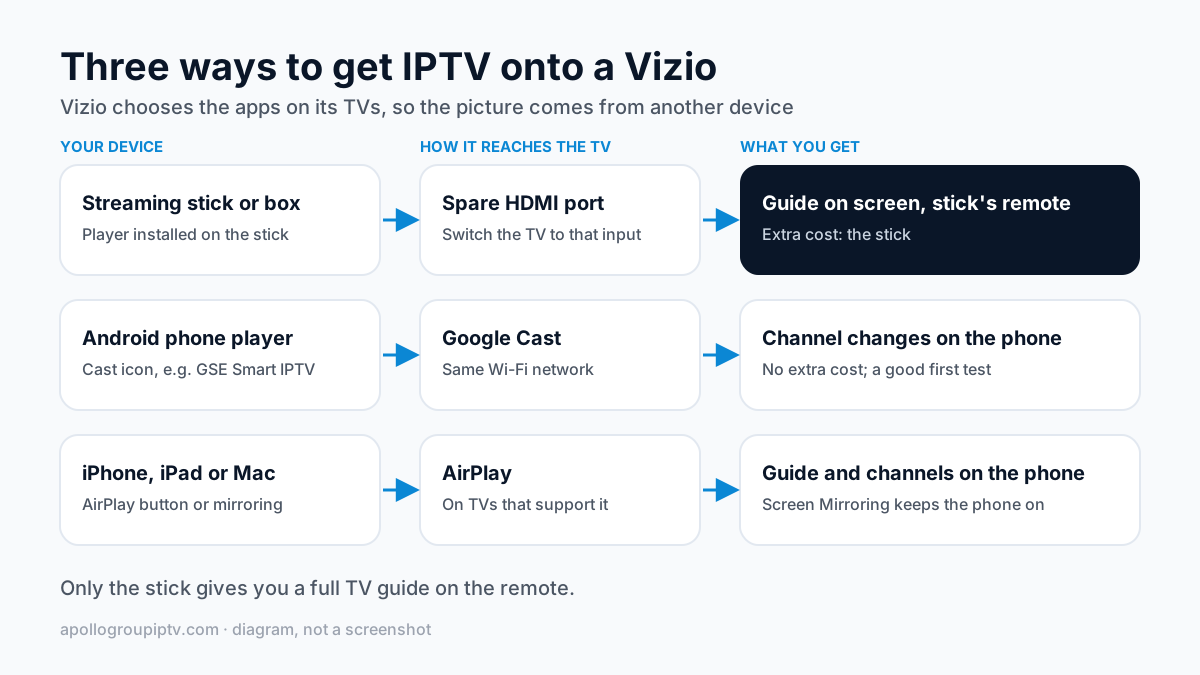
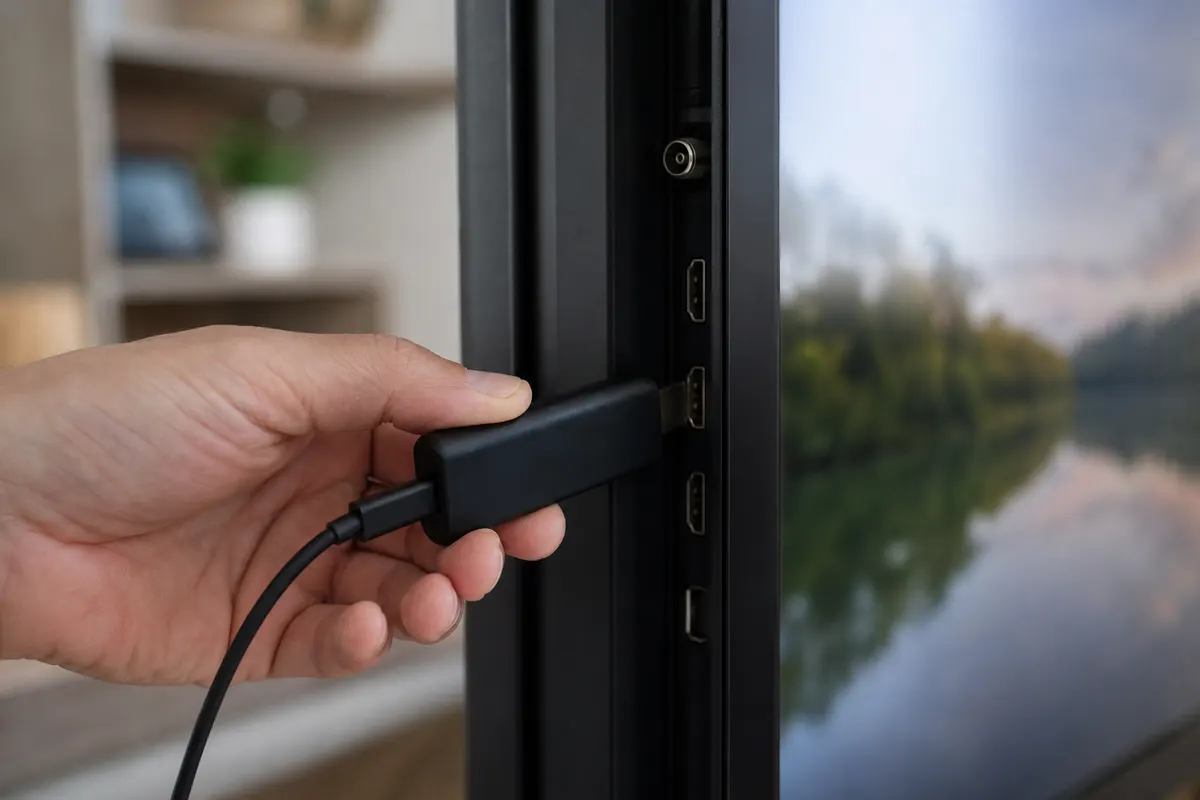
A streaming stick or box is the setup that behaves like a real TV service. You install a player on it, sign in once, and change channels with the stick's remote while the guide stays on screen. The Vizio becomes a monitor: switch it to that HDMI input and leave the TV's own apps alone.
| Device | US list price | How the player installs | Setup guide |
|---|---|---|---|
| onn 4K Pro (2026 model), Walmart | $59.88 | Google Play Store | TiviMate on the onn 4K Pro |
| Amazon Fire TV Stick 4K Max | $84.99 | Downloader app on Fire OS | Firestick setup |
| Google TV Streamer | $149.99 | Google Play Store | Google TV setup |
| Apple TV 4K (4th generation) | $299 | App Store | Apple TV setup |
US list prices before tax, checked 13 October 2026; the onn and Fire TV figures come from dated secondary reports. The new Apple TV 4K reaches stores on 13 November 2026.
For most Vizio owners the onn 4K Pro is the simplest buy: it is the cheapest device in the table and the player comes straight from the Play Store, as the TiviMate on onn 4K Pro walkthrough shows. The Google TV Streamer installs players the same way, and the steps are on the page for Android TV and Google TV boxes. The full field, including MAG and Formuler boxes, is compared in our US streaming box comparison.
One stick to avoid: the Fire TV Stick 4K Select runs Amazon's Vega OS and installs Amazon Appstore apps only, so the usual player route fails on it. Why the 4K Select cannot sideload a player explains how to tell it apart from the Fire OS models.
Once the stick is in, the steps are the same as on any other TV: install the player, enter the server address, username and password, and the channel list loads. The step-by-step setup guides by device cover each one.
Setup 2: cast from an Android phone with Chromecast
Yes, if the player on your phone has a cast button and the TV accepts Google Cast. GSE Smart IPTV supports Chromecast: start a channel, tap the cast icon in the player and pick the Vizio. The TV then fetches the stream itself and the phone acts as the remote.
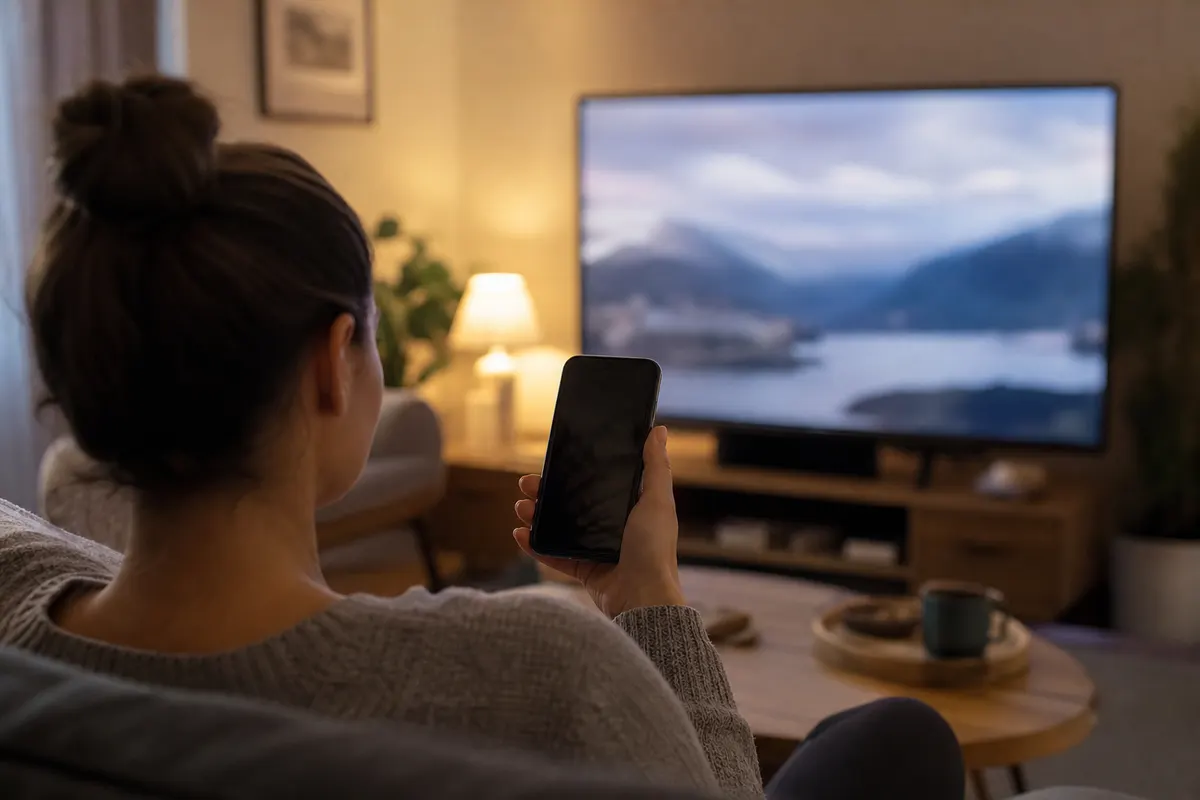
Three things decide whether it works. The phone and the TV must be on the same Wi-Fi network. The player must offer a cast icon; a player without one can only mirror the whole screen, which is slower and keeps the phone awake. And each channel change happens on the phone, so you go back to it every time you switch.
If the cast icon does not appear, check that the TV is on and on the same network, then restart the player. Casting is free to try with a phone you already own, which makes it a good test before you spend money on a stick.
Setup 3: AirPlay from an iPhone, iPad or Mac
Yes, on Vizio TVs that support AirPlay. Vizio's own page lists AirPlay on its current smart TVs and recommends the latest iOS, iPadOS or macOS. Open a player on the iPhone or iPad, start a channel, then use the AirPlay button in the player or Screen Mirroring in Control Center and choose the Vizio.
The two differ. A player's own AirPlay button hands the video to the TV and keeps the phone free. Screen Mirroring copies the whole display, so notifications show on the TV and the phone has to stay on. On a Mac, choose the TV from the Screen Mirroring menu.
Setting up a player on the phone first is covered in the iPhone and iPad IPTV guide; the same login details work in every player.
Stick or casting: what you give up
Casting is good enough for an evening; a stick is better for daily viewing. Casting and AirPlay share the limits of a Roku, which works by screen mirroring only: the guide and channel changes live on the phone, not on the TV remote. The Roku mirroring guide describes the same trade-off.
| What matters | Streaming stick | Chromecast from Android | AirPlay from Apple |
|---|---|---|---|
| TV guide on screen | Yes, in the player | No, on the phone | No, on the phone |
| Change channels with | The stick's remote | The phone | The phone |
| Phone needed while watching | No | As a remote | Yes when mirroring |
| Extra cost | The stick | None | None |
| Picture limited by | Your internet connection | Wi-Fi and the TV's cast support | Wi-Fi and the phone |
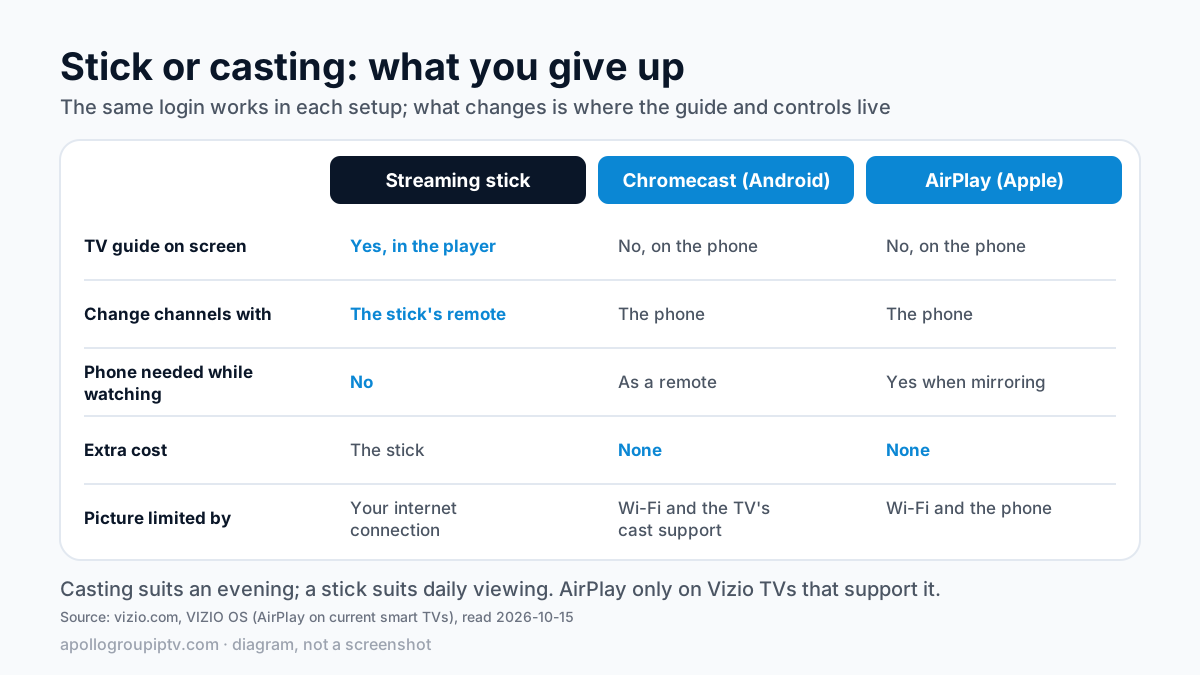
If you watch daily, the stick pays for itself in convenience. If you watch now and then, casting from a phone you already own costs nothing.
A steady picture on a Vizio
Casting adds a second wireless hop, so most buffering on a Vizio comes from Wi-Fi rather than the service. Put the phone and the TV on the 5 GHz band of the same router, keep the phone near the router while casting, and close other video apps on the phone.
With a stick, a wired connection beats Wi-Fi: the onn 4K Pro has an Ethernet port, and Fire TV sticks take Amazon's Ethernet adapter. If channels still pause, the IPTV buffering fixes go through the player settings, and the internet speed IPTV needs shows what your connection should deliver.
Where to go next
Pick the setup, then follow its guide. For a stick, start with the onn 4K Pro or Firestick guide above. For casting, set up the player on your phone first.
Apollo Group TV plans start at $19.99 a month with no contract; compare plan lengths on the plans and prices page. To test it on your Vizio before paying, try free for 24 hours — no credit card required.
How this guide was checked
Checked on 15 October 2026against Vizio's own pages. We did not run these setups on a Vizio TV, so the guide names no menu paths and makes no promise about any one model.
- Software name, app count and AirPlay: vizio.com, VIZIO OS.
- Device prices: 9to5Google: Walmart onn 4K Pro (2026) hits shelves for $60 (2026-04-15), secondary source.
- Device prices: Walmart.com onn 4K Pro (2026) listing (bot-check, not readable) (accessed 2026-10-13).
- Device prices: AFTVnews: Amazon increases the price of all Fire TVs (2026-08-24), secondary source.
- Device prices: 9to5Google: Google TV Streamer price increase (2026-08-31), secondary source.
- Device prices: Apple Newsroom: Apple unveils the new Apple TV 4K (2026-10-13).
- Device prices: Apple Store: Buy Apple TV 4K (checked 2026-10-13).
Updated
Ready to start streaming?
55,000+ channels · 4K UHD · Free 24hr trial — no credit card
Plans from $19.99/month. View Apollo Group TV pricing & plans →