
Where IPTV captions come from
Captions on a live channel come from the broadcaster, not from the IPTV app. The FCC's consumer guide explains that Congress requires video programming distributors, meaning cable operators, broadcasters, satellite distributors and other multichannel distributors, to caption their TV programs. The caption text is not a separate file: it travels inside the video signal.
The format that carries it is CEA-608, which began as the analog “Line 21” captions and, according to Mux, is still the primary standard for captions sent inside the same stream as the audio and video. Digital TV uses CEA-708, which contains a 608 portion for compatibility.
For a live IPTV channel, that means captions survive only if every step between the broadcast and your screen passes the caption data along. A stream is often re-encoded on the way, and the encoder has to carry the captions through. If it does not, the channel still plays with picture and sound, and nothing else.
The FCC rules also have exemptions, including programming shown from 2 a.m. to 6 a.m. and public service announcements shorter than 10 minutes. So a channel that normally shows captions may have none at certain hours. Whether a stream carries captions depends on its source, and we do not promise them on any channel or on-demand title.
1. Broadcast
Caption data rides inside the video as a CEA-608 or CEA-708 track.
2. Stream
Each re-encode must pass the track along. If one drops it, it is gone.
3. Player
The app has to read the track and offer a CC or subtitles control.
4. Screen
You switch the control on; the system style sets size and color.
Closed captions vs subtitles on live TV and on demand
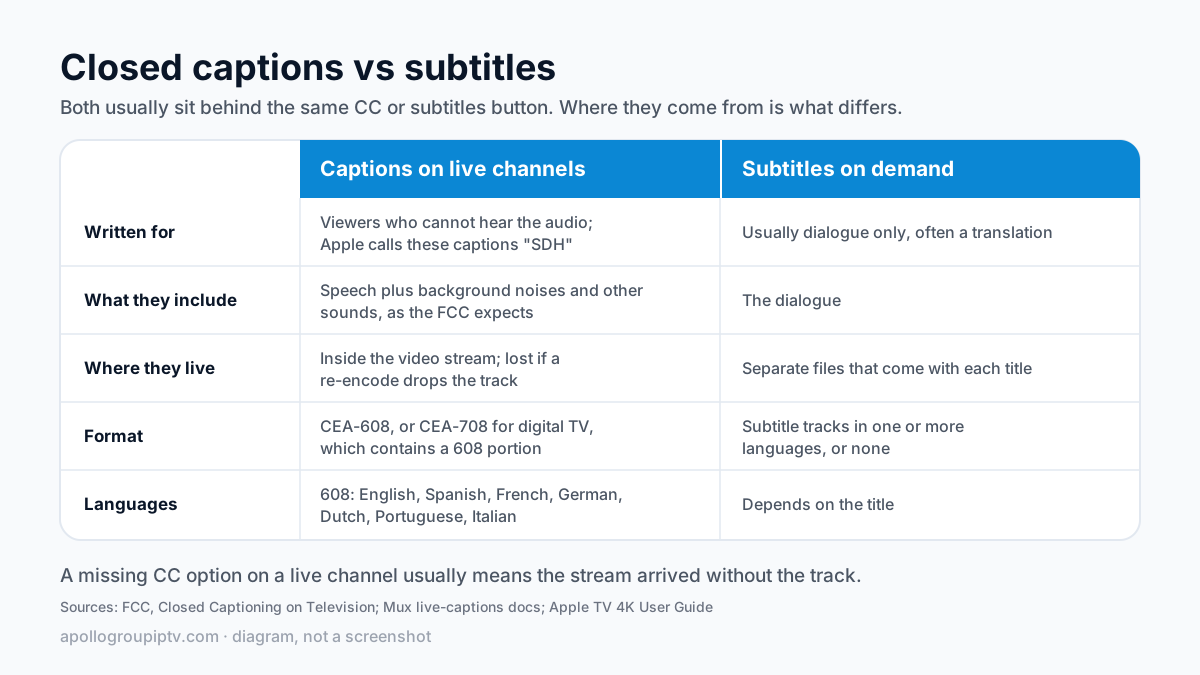
Closed captions are written for viewers who cannot hear the audio, so they include sounds as well as speech; the FCC expects them to convey background noises and other sounds. Subtitles usually carry the dialogue only, often as a translation. Apple calls captions written for deaf and hard-of-hearing viewers “SDH”.
In an IPTV player both usually sit behind the same subtitles or CC button, which is why the two words get used interchangeably. The difference that matters is where they come from. On live channels captions are embedded in the stream, as above. On-demand films and series are separate files, and each title may carry subtitle tracks in one or more languages, or none. Mux notes that 608 captions cover a short list of languages: English, Spanish, French, German, Dutch, Portuguese and Italian.
Turning captions on, player by player
In every player the caption control lives on the playback screen rather than in the main settings: start the channel, bring up the on-screen controls and look for CC, subtitles or a track list. The table shows where to look in four common players and what we could confirm from a source.
| Player | Where to look | What we could confirm |
|---|---|---|
| TiviMate | While a channel plays, open the on-screen playback options and look for a subtitles or track entry. | Not documented by the developer in a source we could check, and not tested on a device for this guide. |
| IPTV Smarters Pro | Open the on-screen controls during playback and look for a subtitles or track option. If there is none, hand the stream to VLC under Settings, Player Selection. | The external-player route is in our setup guide. The caption control itself was not tested for this guide. |
| VLC | Press V to cycle through subtitle and caption tracks, or choose the subtitle track from VLC's menus. | VideoLAN's hotkey table lists V for cycling subtitle tracks. Wowza lists VLC among players that show CEA-608 captions over HLS. |
| Apple TV players | Turn on Closed Captions and SDH in Settings, then use the player's own subtitles control if it has one. | System path from Apple's Apple TV 4K User Guide. Whether a third-party player follows it is up to the player. |
If the track list shows more than one caption entry, try each one, because a track can be listed and still be empty. The IPTV Smarters Pro setup guide shows how to switch to an external player, which is the quickest way to test whether the player or the stream is the limit.
Choosing between players partly on captions? Our TiviMate review and Smarters Pro strengths and limits cover the rest of each app.
System caption settings on Fire TV, Google TV and Apple TV
Sometimes, yes: some players follow the device caption setting, others use their own, so if one switch does nothing, turn on the other as well.
On Apple TV 4K, Apple documents the path: Settings, then Accessibility, then Subtitles and Captioning, then turn on Closed Captions and SDH. Apple also notes that not all videos include closed captions, which holds for IPTV channels too. Our guide to IPTV on Apple TV covers the players themselves.
Fire TV and Google TV devices have system caption settings too, but we have not checked their current menu paths on a device, and they change between software versions and models, so we do not list them here. Look in the device's accessibility settings, and remember that a third-party IPTV player may ignore that switch and rely on its own control.
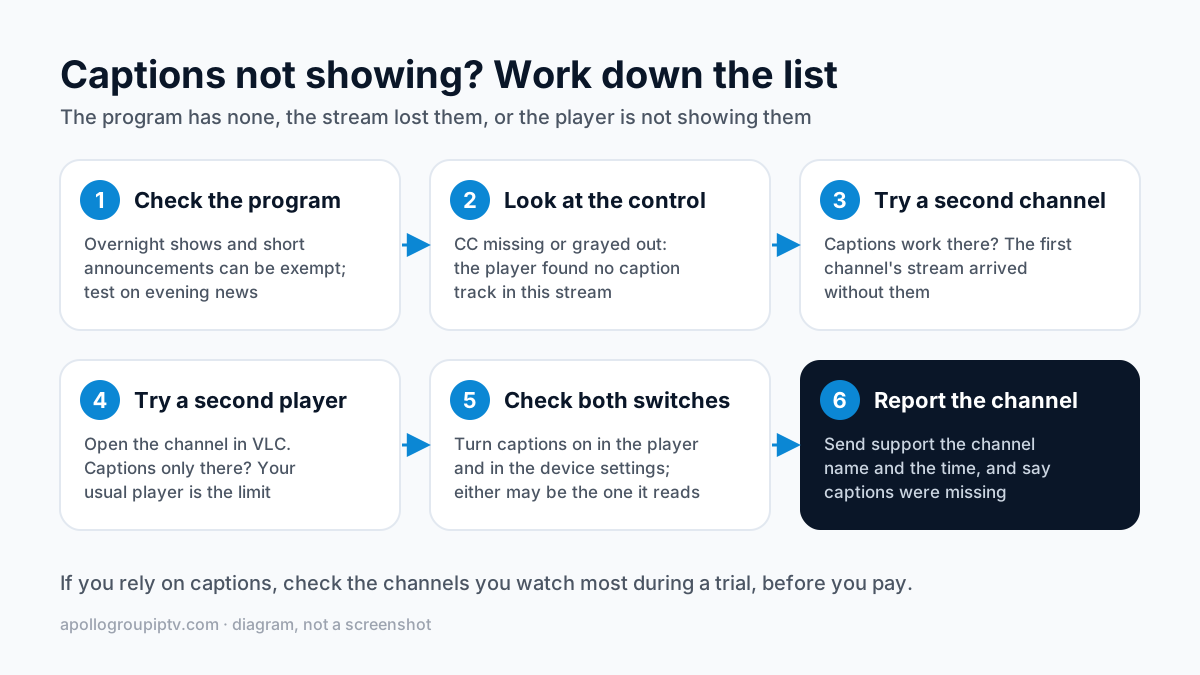
Captions not showing: the checklist
When the captions will not appear, the cause is one of three: the program has none, the stream lost them, or the player is not showing them. Work down the list in order; each step rules one out.
- Check the program. Overnight programming and short announcements can be exempt, so test on a news channel in the evening, well outside the exempt hours.
- Look at the control. If the CC or subtitles option is missing or grayed out, the player found no caption track in this stream.
- Try a second channel.If captions work there, the first channel's stream arrived without them.
- Try a second player. Open the same channel in VLC. If VLC shows captions and your usual player does not, the player is the limit.
- Check both switches. Turn captions on in the player and in the device settings, since either one may be the one the player reads.
- Report the channel. Send support the channel name and the time, and say that captions were missing.
If you rely on captions, check during a trial before you pay. Open the channels you watch most at the times you watch them and confirm the CC control works on each, because a missing track is something no app setting can fix later.
Changing caption size and color
You change caption size and color in the device's caption style settings, or in the player's subtitle settings if it has its own. On Apple TV 4K, go to Settings, then Accessibility, then Subtitles and Captioning, then Style. Apple lets you choose a style or build one from font, size and color, background color and opacity, and text opacity, edge style and highlight.
For reading from across the room, size and background matter most. A larger font with a semi-opaque background behind the text stays legible over bright scenes, where plain white text tends to disappear.

Where to go next
To compare players on more than captions, see the IPTV player comparison. If you watch in more than one language, the guide to international channels by region shows how a worldwide lineup is organized.
Ready to test captions on your own TV? Plans start at $19.99 a month with no contract on the Apollo Group TV pricing page, or try free for 24 hours — no credit card required.
How this guide was checked
Checked on 15 October 2026 against the sources below. We did not test caption controls on a device for this guide, and the table says where that leaves a gap.
- Captioning requirements, quality standards and exemptions: FCC, Closed Captioning on Television.
- CEA-608 as the in-stream standard and its languages: Mux, add your own live closed captions.
- CEA-608 playback over HLS and its place in CEA-708: Wowza, closed captions in a live stream.
- Apple TV caption switch and styles: Apple TV 4K User Guide.
- VLC subtitle track key: VideoLAN wiki, hotkeys.
Updated
Ready to start streaming?
55,000+ channels · 4K UHD · Free 24hr trial — no credit card
Plans from $19.99/month. View Apollo Group TV pricing & plans →