
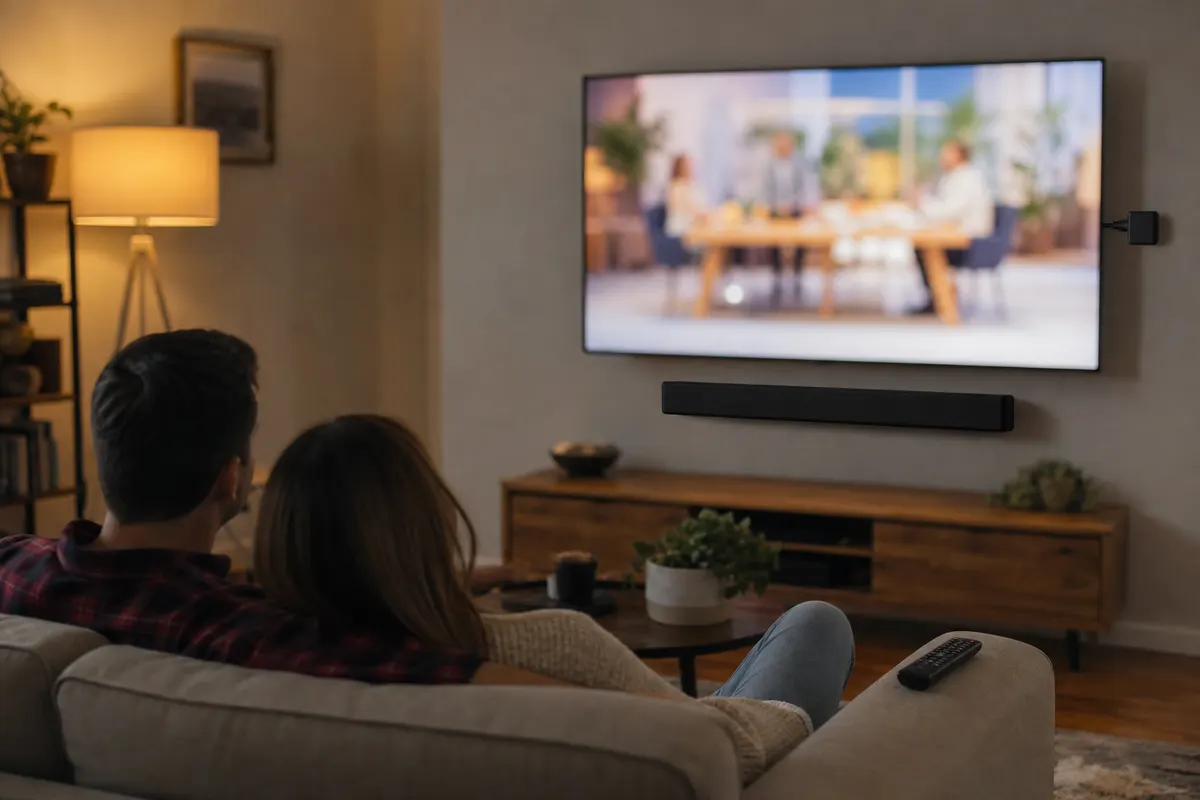
One channel or everything? The two-minute test
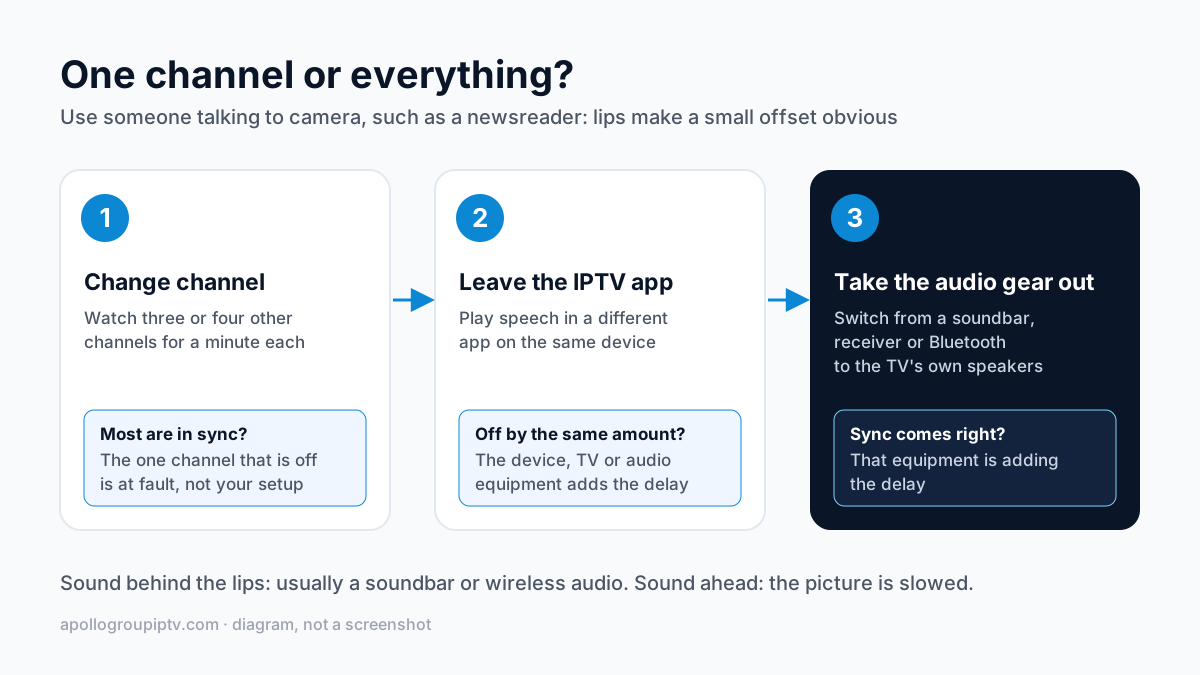
Three quick checks tell you whether the delay comes from the channel or from your equipment, and they take less time than changing a single setting. Use someone talking to camera, such as a newsreader, because lips make even a small offset obvious.
- Change channel. Watch three or four other channels for a minute each. If the lips and words match on most of them, the fault belongs to the one channel that is off, not to your setup.
- Leave the IPTV app. Play speech in a different app on the same device. If that is out of step by the same amount, the delay is being added after the app, by the device, the TV or the audio equipment.
- Take the audio equipment out.If you use a soundbar, receiver or Bluetooth headphones, switch to the TV's own speakers for a minute. If the sync comes right, that equipment is adding the delay.
Note which way it is off. Sound that lags behind the lips is the usual pattern with soundbars and wireless headphones, because every box the audio passes through takes time to process it. Sound that arrives before the lips move points at something slowing the picture instead, either the TV's own picture processing or the stream itself.
Every app
The delay is added after the player: soundbar, receiver, Bluetooth or TV settings. Fix it on the device.
Only IPTV
Every channel off: change the decoder or player. One channel off: the stream is the cause, so report it.
What the pattern tells you
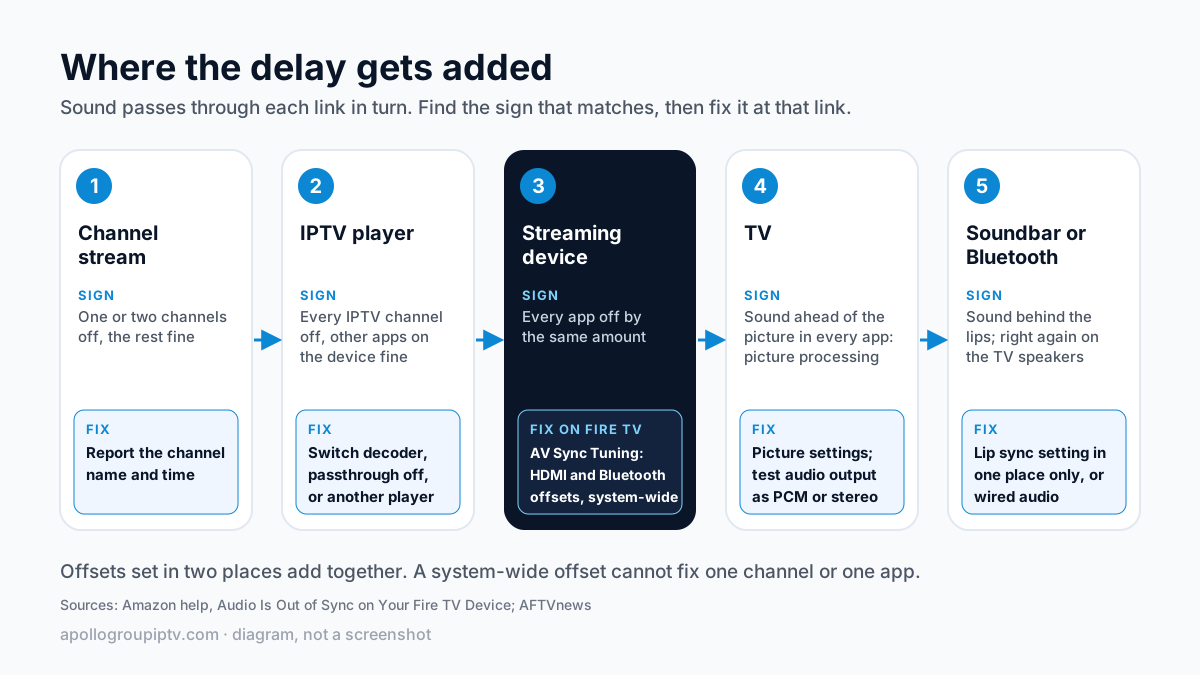
The result of the test points to a cause, and each cause has its own fix. Find your row and go straight to the matching section below instead of trying every fix in turn.
| What you see | Likely cause | Where to fix it |
|---|---|---|
| Every app and channel is off by the same amount | Delay added by a soundbar, receiver, HDMI ARC link or the TV's audio processing | Device or TV audio settings |
| Only off while Bluetooth headphones or a Bluetooth speaker is connected | Bluetooth audio latency | The Bluetooth offset in the device's sync setting, or wired audio |
| Every IPTV channel is off, but other apps on the same device are fine | The player's decoder or audio output setting | Player settings, or a different player |
| One or two channels are off, the rest are fine | That channel's stream | Report the channel |
| Starts in sync, then slides out over the evening | Timing in the player or the stream, sometimes with buffering | Restart the channel, change decoder, check the connection |
| Sound runs ahead of the picture in every app | Picture processing on the TV delaying the video | TV picture settings, then a sync offset |
Fix it on the device: TV, soundbar and Bluetooth
If every app is out of sync, the delay is added after the IPTV player, so the fix is a device-wide audio offset or a change to how the sound reaches your speakers. Changing player settings will not help.
Fire TV: AV Sync Tuning
Amazon documents the path: Settings, then Display & Sounds, then Audio, then AV Sync Tuning. A ball bounces on screen with a flash and a tone. Use the left and right buttons on the remote until they line up: if the tone comes before the flash, move right; if it comes after, move left. Press Select to apply. Amazon notes that the slider is not available on all Fire TV smart TVs, and that a home theater setup should use its Lip Sync Tuning setting instead.
AV Sync Tuning keeps separate offsets for HDMI and for Bluetooth, so correcting your headphones does not throw off the soundbar. It is also system-wide: it shifts every app by the same amount, so it cannot correct one app or one channel on its own.
Soundbars, receivers and HDMI ARC
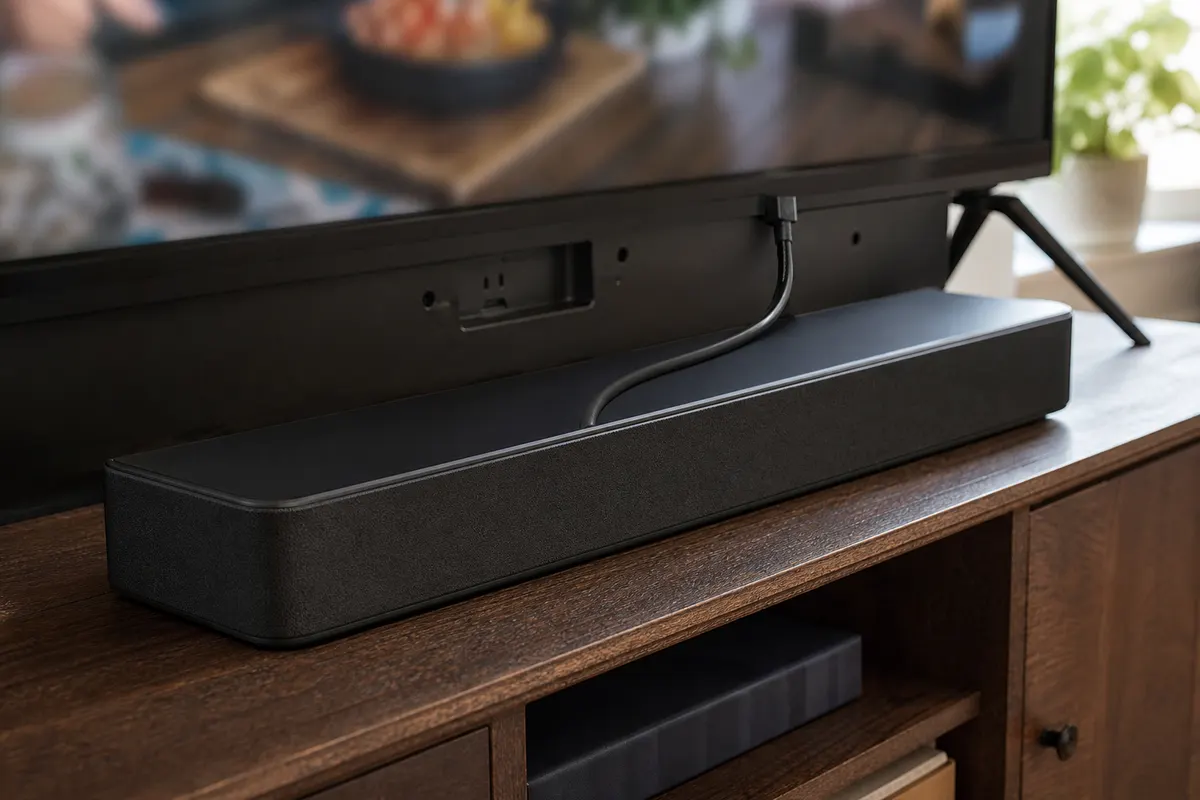
Look for a setting called lip sync, AV sync or audio delay on the TV, the soundbar and the receiver. Set it in one place only: offsets in two places add together and are hard to undo. If the soundbar connects through HDMI ARC or eARC, also check the TV's digital audio output. Passing surround sound through as Dolby Digital makes the soundbar decode it, which can add delay, so switching the output to PCM or stereo is a quick test of whether that is the cause.
Bluetooth headphones and speakers
Bluetooth audio always arrives a little late, because the sound is compressed, sent and decoded again in the headphones. Some devices compensate and some do not. Use the Bluetooth offset on Fire TV, or an audio delay setting on your device if it has one. If there is none, wired headphones or speakers remove that delay altogether.
Fix it in the player: decoder and audio output
If every IPTV channel is off but other apps on the same device are fine, change how the player decodes the stream before you touch anything else. Make one change at a time and retest on the same channel, so you know which change worked.
- Switch the decoder.Most IPTV players offer a hardware decoder and a software decoder, and some offer a choice of player engine. Look in the player's playback or decoder settings. Hardware decoding is lighter on the device; software decoding copes with more unusual streams. Either one can be the setting that keeps sound and picture together on a given device, so the test is the answer.
- Turn off audio passthrough. If the player has a passthrough option, switch it off and retest. The device then decodes the sound itself instead of handing it to the soundbar.
- Try an external player. IPTV Smarters Pro can hand a stream to an external player such as VLC or MX Player: install the player, then choose it under Settings, Player Selection. Our IPTV Smarters setup walkthrough covers that step. If the sync is right there, keep the external player for the channels that misbehave.
- Set a delay in VLC on a computer. VLC has a Track Synchronization window under its Tools menu, where you can move the audio earlier or later. Its keyboard shortcuts for audio delay vary between systems, so use the menu.
If the delay survives a decoder change, a different player and a restart of the app, the stream is the more likely cause, which the next section deals with.
When the channel itself is out of sync
If only one channel is off and every other channel plays in sync on the same device, the fault is in that channel's stream, and no setting on your side will fix it for good. A player's audio delay control can mask it for the evening, but the offset will then be wrong on the next channel you open.
Report it instead. We sell subscriptions and would rather blame the soundbar, but sometimes it is our stream, and when it is, reporting it is the fix. Tell support the channel name and the time you saw it, plus the device you were watching on. That lets the team check the source at the moment it went wrong.
If the picture goes black while the sound carries on, that is a decoding fault rather than a delay, and the fixes for a black screen with sound cover it.
Sync that drifts the longer you watch
Sound that starts in step and slides out over half an hour or more is a timing problem in the player or the stream, not a fixed delay in your equipment, which is why a device offset does not hold. Switching to another channel and back restarts the stream and resets the player's timing, and usually brings it back in line for a while.
If it drifts on every channel, try the other decoder. If it drifts on one channel only, report it. If the drift arrives with stalls and spinning wheels, the connection is involved: the steps to stop IPTV buffering and the guide to how much speed IPTV needs deal with that side.
Stop it coming back
A few habits keep a fixed sync from slipping again.
- Keep one sync offset, on one device, rather than small corrections on the TV, soundbar and player.
- Write down the setting that fixed it, with the device and app version, so you can restore it after an update or reset.
- Update the player app and the device software. Fire TV's own AV Sync Tuning reached devices in a software update.
- After adding a soundbar or new headphones, run the two-minute test again before changing player settings.
Where to go next
The guide to every IPTV fault and fix sorts the other symptoms by cause. If nothing plays at all, start with Apollo Group TV not working.
Still choosing a service? Plans start at $19.99 a month with no contract on the Apollo Group TV plans page, or try free for 24 hours — no credit card required. Test the channels you watch most on your own TV and sound setup first.
How this guide was checked
Checked on 15 October 2026 against the sources below. We did not run these steps on a device for this guide, and menu names move between app and system versions.
- Fire TV path and Lip Sync Tuning: Amazon help, Audio Is Out of Sync on Your Fire TV Device.
- Separate HDMI and Bluetooth offsets, and the system-wide limit: AFTVnews, Fire TV audio/video sync adjustment.
- VLC Track Synchronization: VideoLAN wiki.
Updated
Ready to start streaming?
55,000+ channels · 4K UHD · Free 24hr trial — no credit card
Plans from $19.99/month. Compare every plan and price →